> For the complete documentation index, see [llms.txt](https://docs.scannit.io/llms.txt). Markdown versions of documentation pages are available by appending `.md` to page URLs; this page is available as [Markdown](https://docs.scannit.io/how-to-get-started/everything-quests/how-to-verify-quests.md).
# How to Verify Quests
Now that you have completed your first quest, let’s look at how to verify other users' submissions. Verifying is a crucial part of the Scannit community and a great way to earn extra points.
Follow these steps to become a top-tier reviewer.
{% columns %}
{% column %}
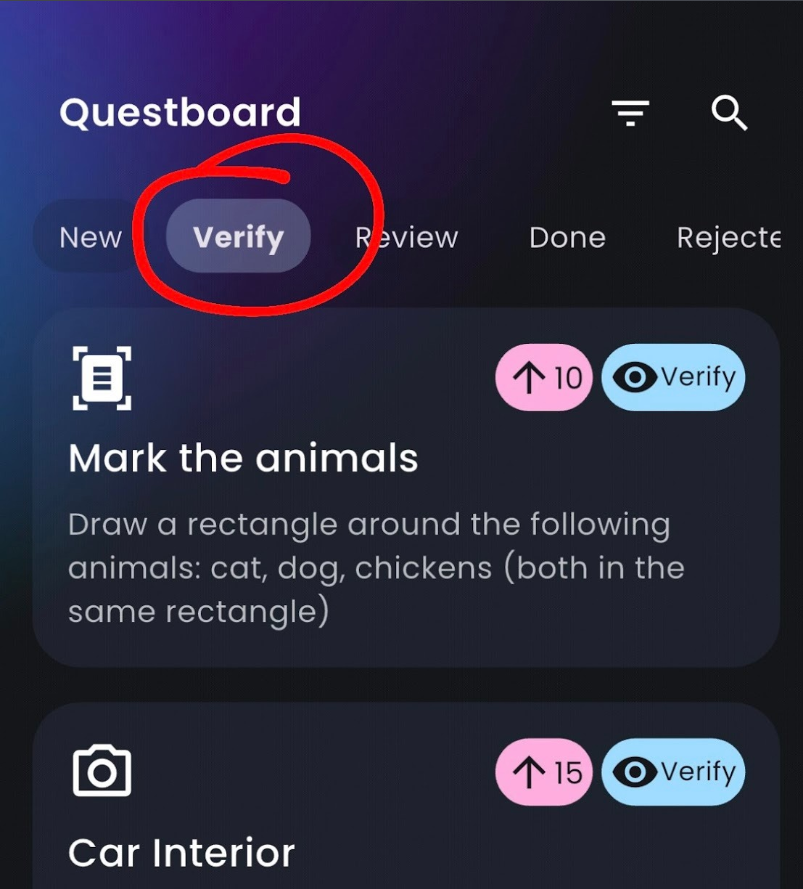
#### 1. Go to the Verify tab
Tap on the Verify icon in the Questboard. This will show you a queue of submissions from other users that are waiting for approval.
{% endcolumn %}
{% column %}
{% endcolumn %}
{% endcolumns %}
#### 2. Analyze the submission
Before you vote, read the specific quest instructions carefully. Then, look closely at the submitted photo or video. Ask yourself: Has the task been completed? Have the instructions been followed exactly?
#### 3. Watch out for fake or low-quality submissions
We want to keep Scannit fair for everyone. Please only approve submissions that have been completed the right way. Be on the lookout for common issues such as:
* AI-generated images
* Photos taken of computer or phone screens
* Blurry or dark images
* Wrong or irrelevant pictures
#### 4. Make your decision
* Approve: If the user followed all instructions.
* Reject: If the submission violates the rules or does not match the prompt.
#### 5. Get your points
Your points are credited as soon as the final decision for each quest has been made. You earn points if your decision matches the majority vote of the community. This ensures accuracy and fairness.
#### 6. Disagree with the result?
If you believe there has been a mistake in the voting process, you always have the option to dispute a decision. \[Read here how to dispute decisions]
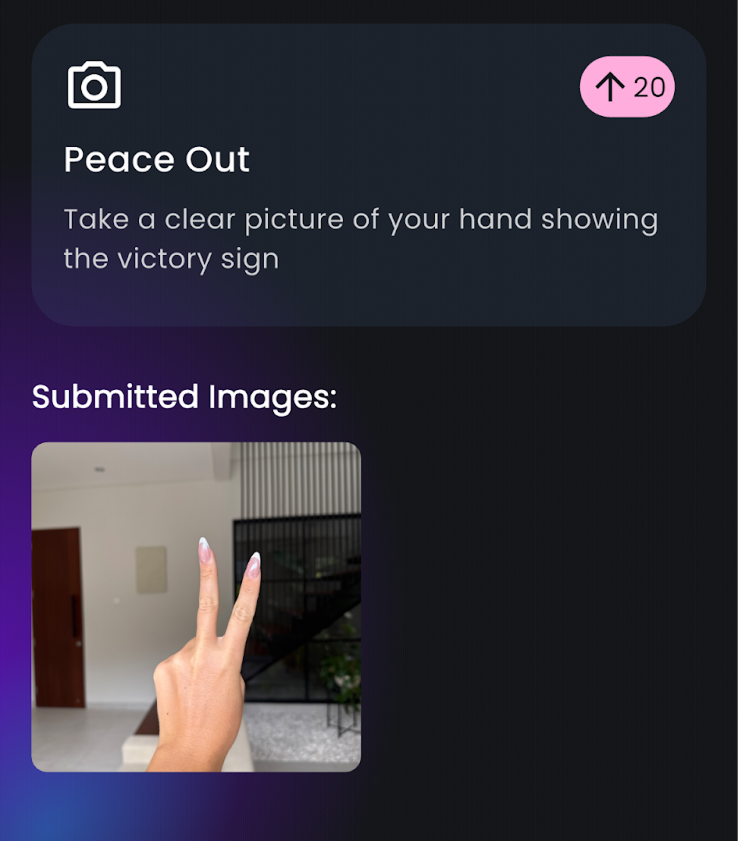
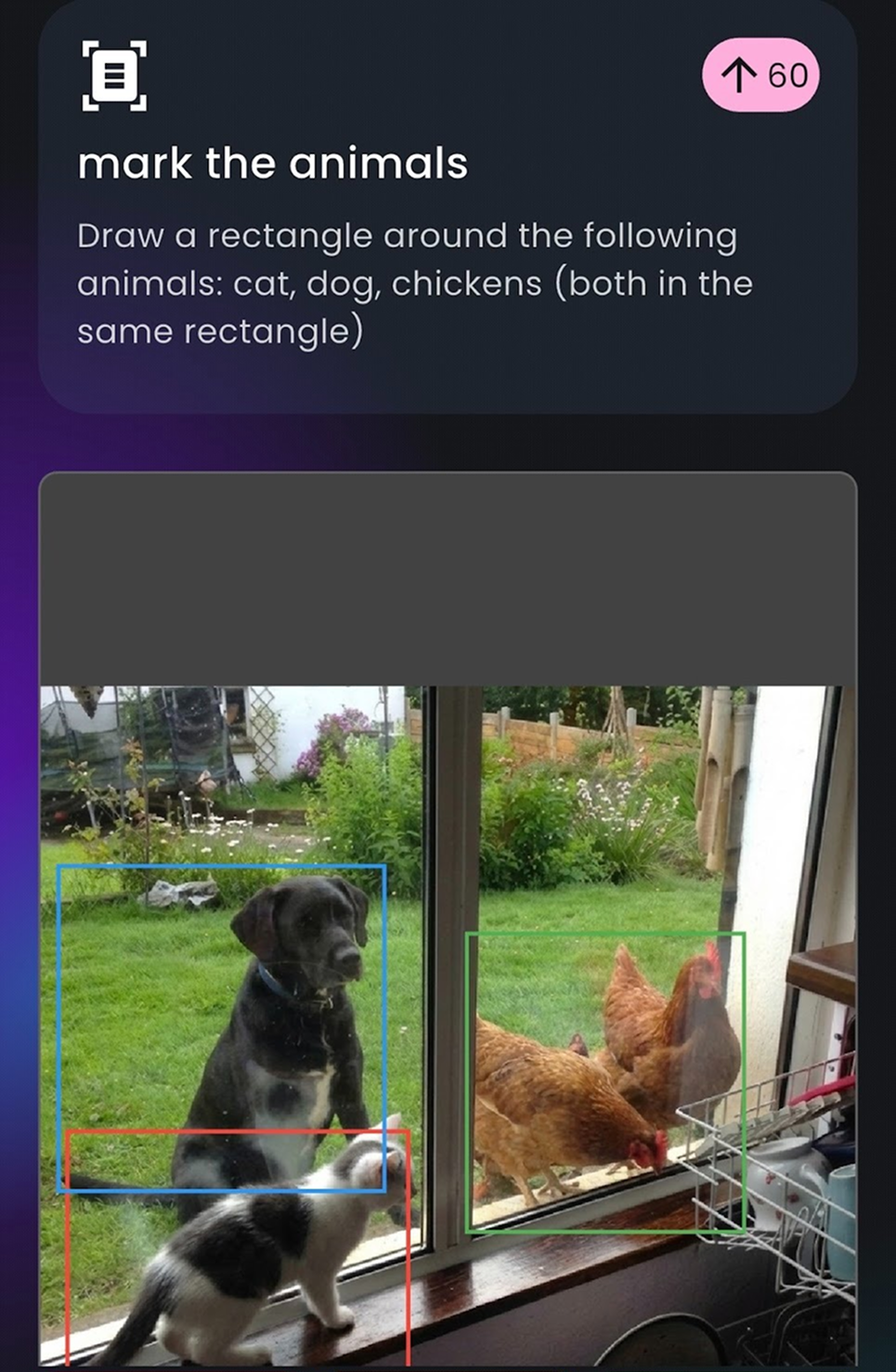
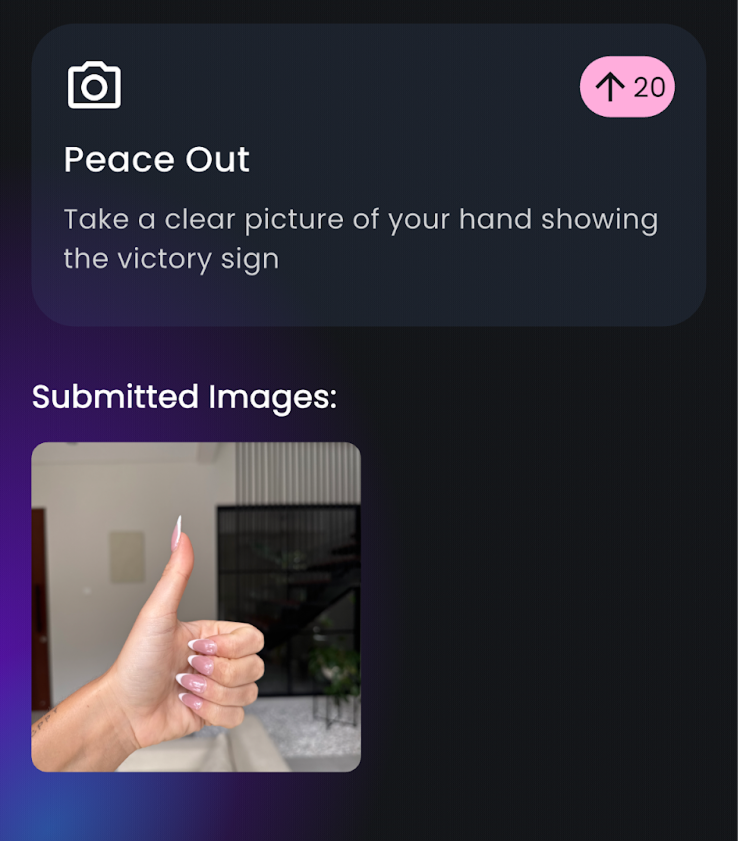
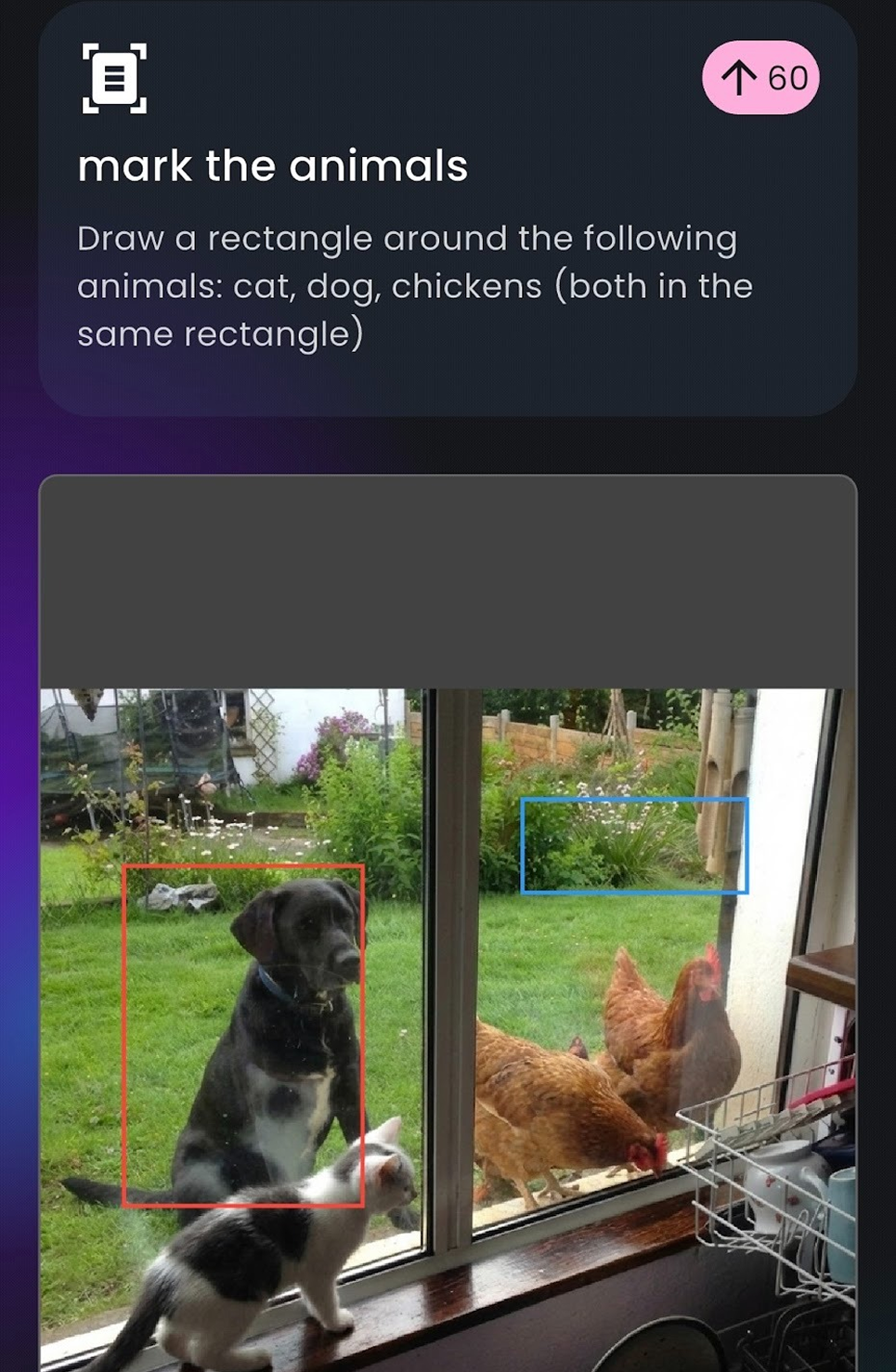
Here are some examples of good and bad submissions:
{% columns %}
{% column width="50%" %}
#### GOOD - approve
#### GOOD - approve
{% endcolumn %}
{% column width="50%" %}
#### BAD - (wrong gesture)
#### BAD - (not all animals marked)
{% endcolumn %}
{% endcolumns %}