> For the complete documentation index, see [llms.txt](https://docs.scannit.io/llms.txt). Markdown versions of documentation pages are available by appending `.md` to page URLs; this page is available as [Markdown](https://docs.scannit.io/how-to-get-started/everything-quests/image-labeling-quests.md).
# Image Labeling Quests
Let’s talk about our newest quest type: Image Labeling. This is a fun and easy way to earn points by identifying specific objects within photos.
Follow this guide to master the art of labeling and ensure your submissions are approved every time.
{% columns %}
{% column %}
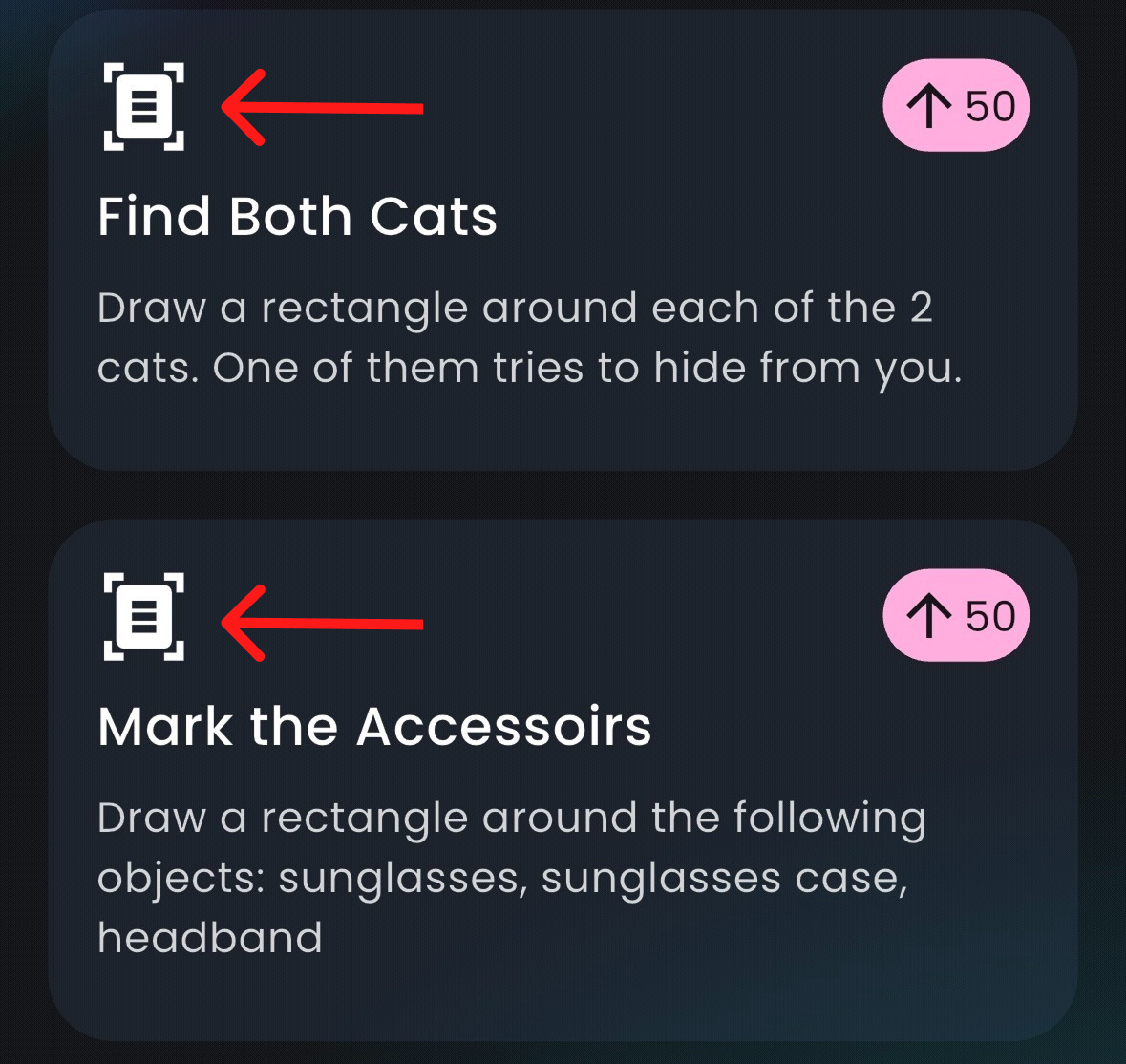
#### 1. Find the Image Labeling Symbol
Scroll down through the quest list in the app. Look for this specific Image Labeling symbol to identify these quests.
{% endcolumn %}
{% column %}
{% endcolumn %}
{% endcolumns %}
{% columns %}
{% column %}
{% endcolumn %}
{% column %}
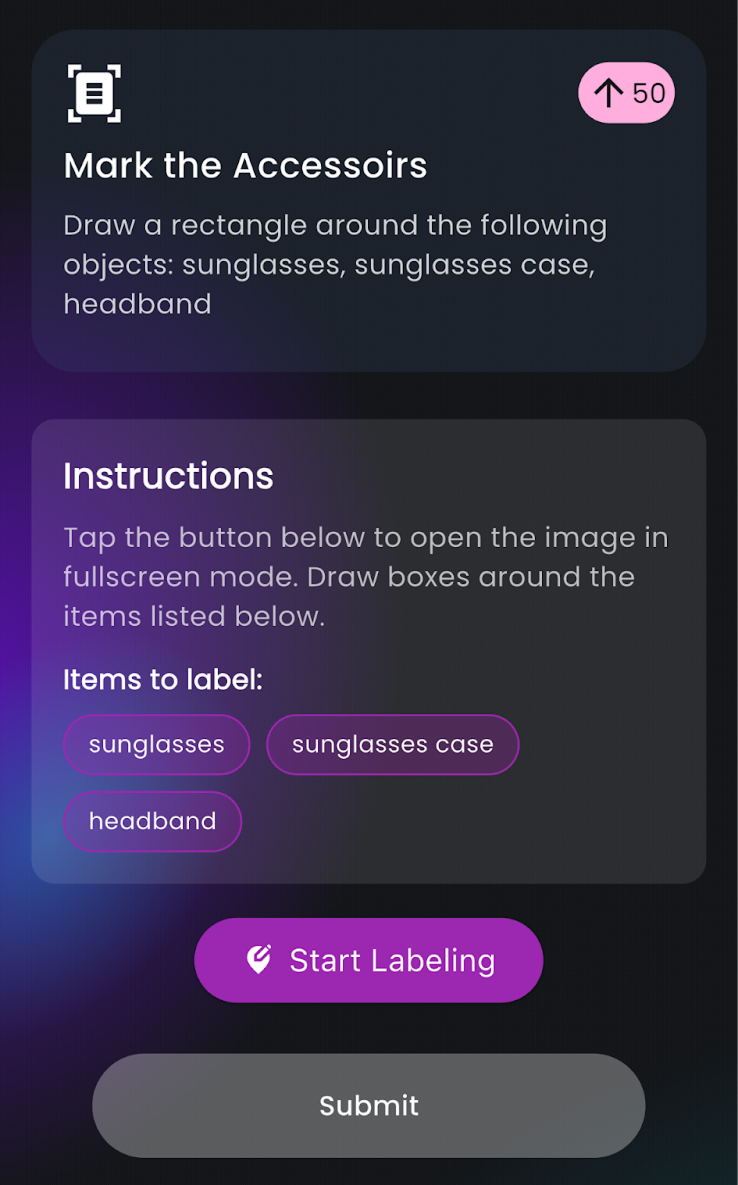
#### 2. Start the Task
As always, **read the instructions carefully** before you begin so you know exactly what objects to look for. When you are ready - **tap, Start Labeling.**
{% endcolumn %}
{% endcolumns %}
{% columns %}
{% column %}
#### 3. Draw and Adjust your Boxes
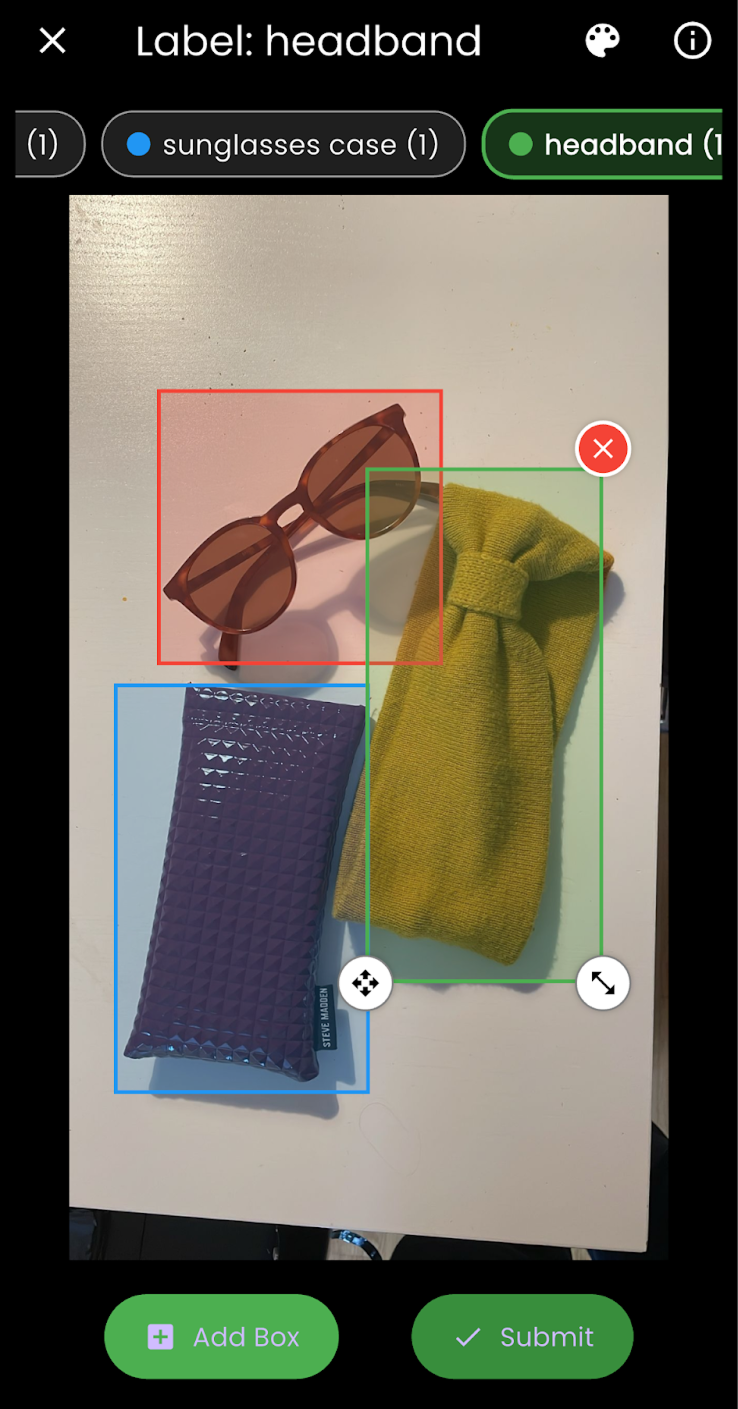
Tap Add Box to create a frame on the screen. Drag the box to place it around the object, then adjust the size so it fits perfectly around the item you are identifying.
#### 4. Check Colors and Amount
Precision matters here.
* **Color Coding:** Make sure to label each object in the specific color requested in the instructions.
* **Completeness:** Do not miss anything. Make sure to label all the required objects in the image, not just one.
#### 5. Submit and Earn
Once you are happy with your labels and sure you haven't missed anything, **click Submit**. Your points will be granted once your quest has been verified by the community.
{% endcolumn %}
{% column %}
{% endcolumn %}
{% endcolumns %}