> For the complete documentation index, see [llms.txt](https://docs.scannit.io/llms.txt). Markdown versions of documentation pages are available by appending `.md` to page URLs; this page is available as [Markdown](https://docs.scannit.io/how-to-get-started/everything-quests/dispute-a-community-vote.md).
# Dispute a Community Vote
In our [How to Verify Quests guide](/how-to-get-started/everything-quests/how-to-verify-quests.md), we explained that you earn points for verifications only when your decision matches the community vote. This system ensures everyone takes the time to check quests accurately rather than just hitting "approve" every time.
However, we know that mistakes can happen, after all, we are all human! If you truly believe a community vote was incorrect, you have the option to dispute it.
Follow these simple steps to have an admin review your verification:
{% columns %}
{% column %}
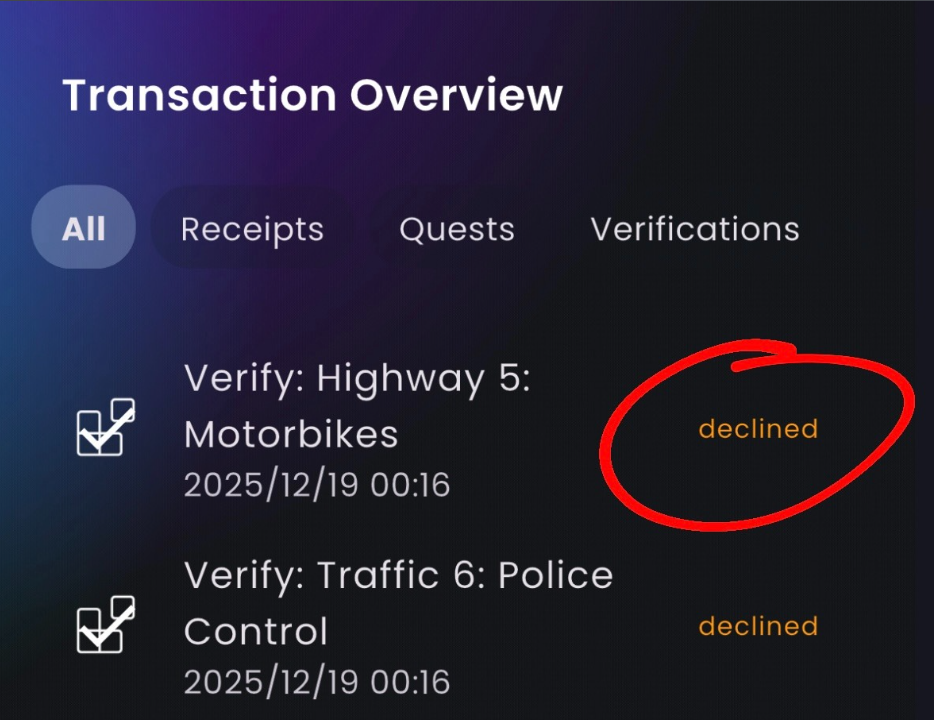
#### 1. Open your Transaction Overview
Tap the **icon in the bottom right corner** of the Scannit app.
This will take you to your transaction history, where you can see all your recent activity, including any **declined verifications.**
{% endcolumn %}
{% column %}

{% endcolumn %}
{% endcolumns %}
{% columns %}
{% column %}
{% endcolumn %}
{% column %}
#### 2. Select the Verification
Find the specific verification you believe was handled incorrectly. Tap on it to **open the details.**
{% endcolumn %}
{% endcolumns %}
{% columns %}
{% column %}
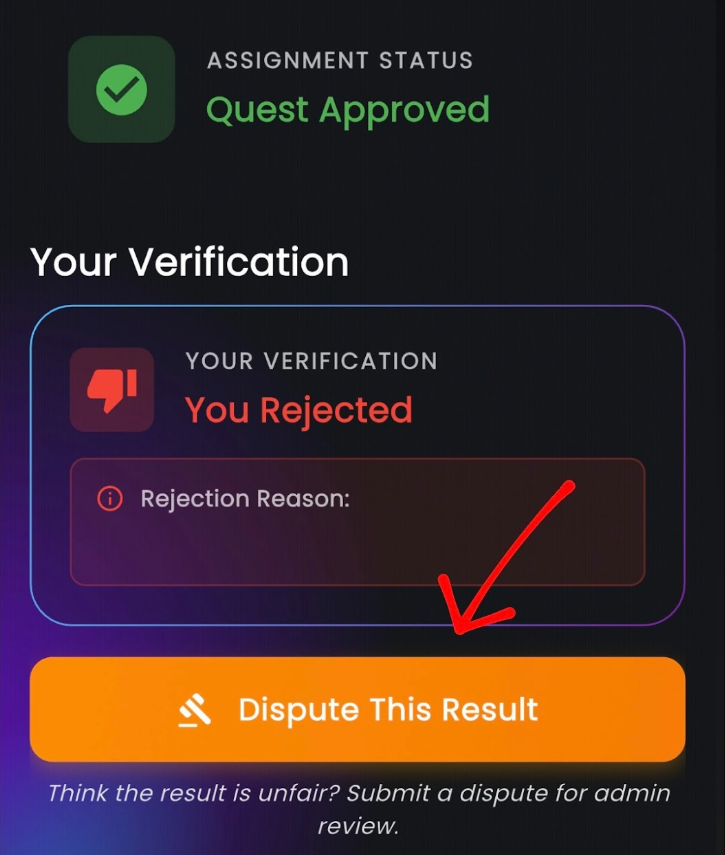
#### 3. Check the Quest Status
Inside the transaction details, you will see the final **Quest Status**. If this status doesn't match the verification you submitted, you won't have received points for it. Review the quest one last time to be sure there wasn't a detail you missed!
#### 4. Tap "Dispute This Result"
If you are still confident that the community vote was wrong, tap the **Dispute this result** button.
{% endcolumn %}
{% column %}
{% endcolumn %}
{% endcolumns %}
{% columns %}
{% column %}

{% endcolumn %}
{% column %}
#### 5. Admin Review
Once you submit a dispute, one of our **Scannit admins** will manually check the quest.
If the admin agrees with your assessment, the decision will be overturned, and you will receive your points.
{% endcolumn %}
{% endcolumns %}
**A Note on Fairness**: Please be honest and fair when using this feature. Only dispute a result if you genuinely believe a mistake was made. Frequent, unnecessary disputes create extra work for our team and slow down the process for everyone!
**Ready to get back to it?** Head over to your transaction history now to see if your recent verifications were a match.